Service Instance Access
This page describes usage specific to a9s Messaging. It builds upon the information provided in Getting Started - Accessing a Service Instance.
Accessing an a9s Messaging Service Instance
The Service Plans and Templates 'messaging40', which were previously used for a9s Messaging 4, have been renamed to 'messaging4'. The 'messaging4' templates always contains the latest supported version of RabbitMQ 4.
Furthermore, templates with the name pattern messaging4<minor_version_number>-* have been added in order to provide
the latest version of the previous RabbitMQ minor version, as a possibility for a rollback from the latest RabbitMQ
version. These fallback templates will be updated every time when a new minor version of RabbitMQ is introduced.
For more information on using this legacy version, see a9s Messaging - Rollback to Legacy Version.
In order to access an a9s Messaging Service Instance, the Service Instance's credentials stored in the environment variables of the application bound to it. This is further explained in Lifecycle of a Service Instance - Obtain Credentials for Accessing a Service Instance.
cf env a9s-messaging-app
Output
Getting env variables for app a9s-messaging-app in org test / space test as admin...
OK

System-Provided:
{
  "VCAP_SERVICES": {
    "a9s-messaging4": [
      {
        "binding_guid": "b1ebc2fe-c74c-43b6-9f85-503f5ff31c5a",
        "binding_name": null,
        "credentials": {
          "cacrt": "-----BEGIN CERTIFICATE-----\n ... -----END CERTIFICATE-----\n",
          "host": "hostname.node.dcx.consul",
          "hosts": [
            "hostname.node.dcx.consul"
          ],
          "password": "password",
          "port": 5672,
          "http_api_uri": "https://username:password@hostname.node.dcx.consul/api/",
          "http_api_uris": ["https://username:password@hostname.node.dcx.consul/api/"],
          "protocols": {
            "amqp+ssl": {
              "host": "hostname.node.dcx.consul",
              "hosts": [
                "hostname.node.dcx.consul"
              ],
              "password": "password",
              "port": 5671,
              "ssl": true,
              "uri": "amqps://username:password@hostname.node.dcx.consul:5671",
              "username": "username"
            },
            "management": {
              "cacrt": "-----BEGIN CERTIFICATE-----\n ... -----END CERTIFICATE-----\n",
              "host": "hostname.node.dcx.consul",
              "hosts": [
                "hostname.node.dcx.consul"
              ],
              "password": "password",
              "path": "/api",
              "port": 15672,
              "ssl": true,
              "uri": "https://username:password@hostname.node.dcx.consul:15672/api/",
              "uris": ["https://username:password@hostname.node.dcx.consul:15672/api/"],
              "username": "username"
            }
          },
          "ssl": true,
          "uri": "amqps://username:password@hostname.node.dcx.consul:5671",
          "username": "username"
        },
        "instance_guid": "fe4ac3a2-9396-4b63-9022-b5108e339a8e",
        "instance_name": "a9s-messaging4-instance",
        "label": "a9s-messaging4",
        "name": "a9s-messaging-app",
        "plan": "messaging-single-small",
        "provider": null,
        "syslog_drain_url": null,
        "tags": [
         "messaging",
         "queue"
        ],
        "volume_mounts": []
      }
    ]
  }
}
...
The host, username and password values can be used to connect to a database with a RabbitMQ client.
Protocols Hash
The credentials hash contains a protocols hash that lists credentials by protocol.
| Protocol key | Enabled when |
|---|---|
amqp+ssl | always |
mqtt + mqtt+ssl | MQTT plugin enabled |
webmqtt+ssl | WebMQTT plugin enabled |
stomp + stomp+ssl | STOMP plugin enabled |
webstomp+ssl | WebSTOMP plugin enabled. |
management | always |
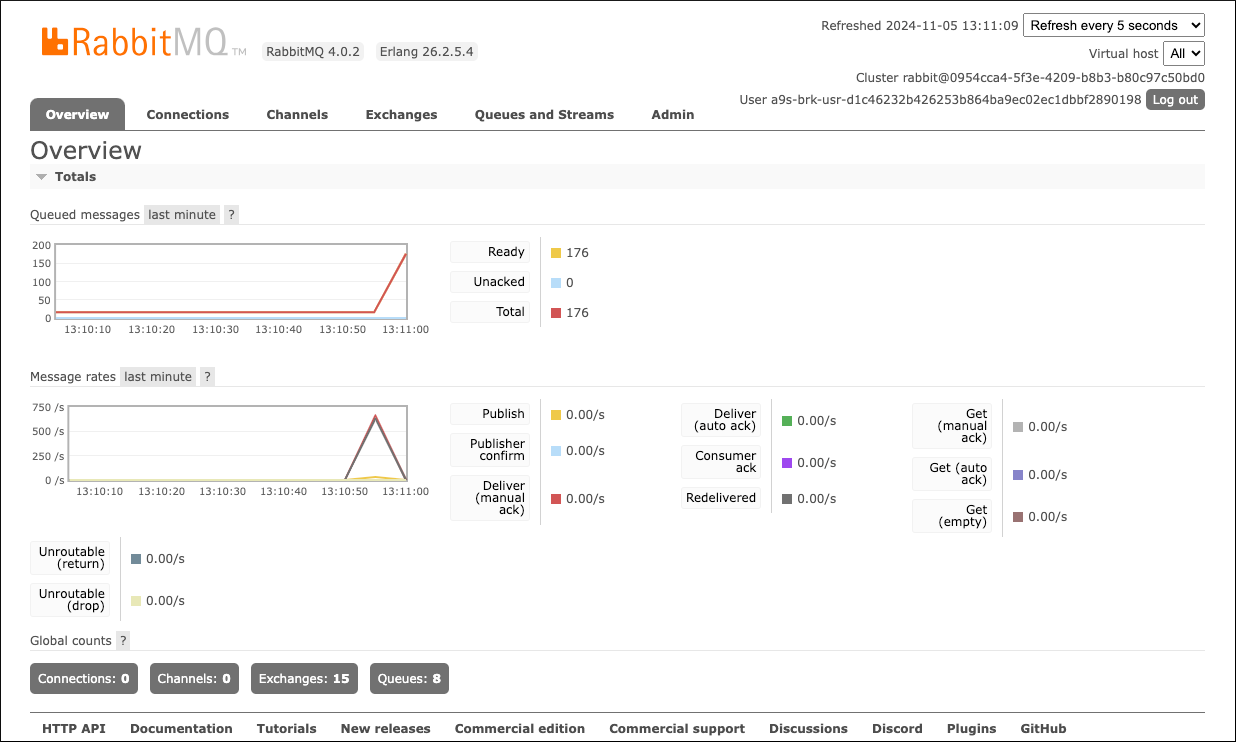
Use RabbitMQ Management Dashboard
a9s Messaging has management dashboard support enabled. The dashboard is running on the Service Instance VM so it is not possible to open the dashboard in your browser directly.
Option: via (Go) router
When the Platform Operator has configured the (Go)router to route the RabbitMQ Management Dashboard the dashboard will
be exposed under a URL formatted as https://service-instance-guid.a9s-rabbitmq-dashboard.system.domain.
Create a Tunnel to the Service
With the cf ssh command a ssh forward tunnel to the management dashboard can be created. Use port 15672 to connect
to the a9s Search Instance.
cf ssh a9s-messaging-app -L 15672:d67901c.service.dc1.a9svs:15672
vcap@956aaf4e-6da9-4f69-4b1d-8e631a403312:~$
Don't forget to close the session with exit.
Login to The Management Dashboard
When the ssh tunnel is open, you can access the Dashboard with your Browser via https://localhost:15672.
To login to the management dashboard you need the user credentials.
If the login was successful, you should see the dashboard as followed.